


Asic Hash Board Repair
With more and more difficuilt to get a new hashboard, to repair an old hashboard is necessary thing to do, and choosing a proper rework machine is an important job. DH-A2E is a popular one for repairing hash board, such as,antminer l3+ hash board repair,antminer s9 hash board repair,s17 hash board repair and so on.
Description
Asic hash board repair
Upgraded with new look and better configuration: optical alignment system,smart temperature controlling,
automatic desoldering/removeing and soldering, one-key to start, which make it be easily operated without
any complicated procedures.

Product parameter
| Power supply | 220V 50/60Hz |
| Rated power | 5000W |
| Upper heater's power | 1200W |
| Bottom heater's power | 1200W |
| IR power | 2400W |
| PCB position |
V-groove,PCB-platform with fixtures is movable at X-axis |
| Temperature control | PID caculating, thermocouple cloosed-loop |
| Mounting accuracy | 0.01mm |
| Min chip space | 0.1mm |
| Motion | PLC copntrol |
| PCB size | Min 10*10mm, Max 450*400mm |
| Chip size | 1*1~80*80mm |
| Dimension | 600*700*850mm |
| Net weight | 70kg |
Product illustration
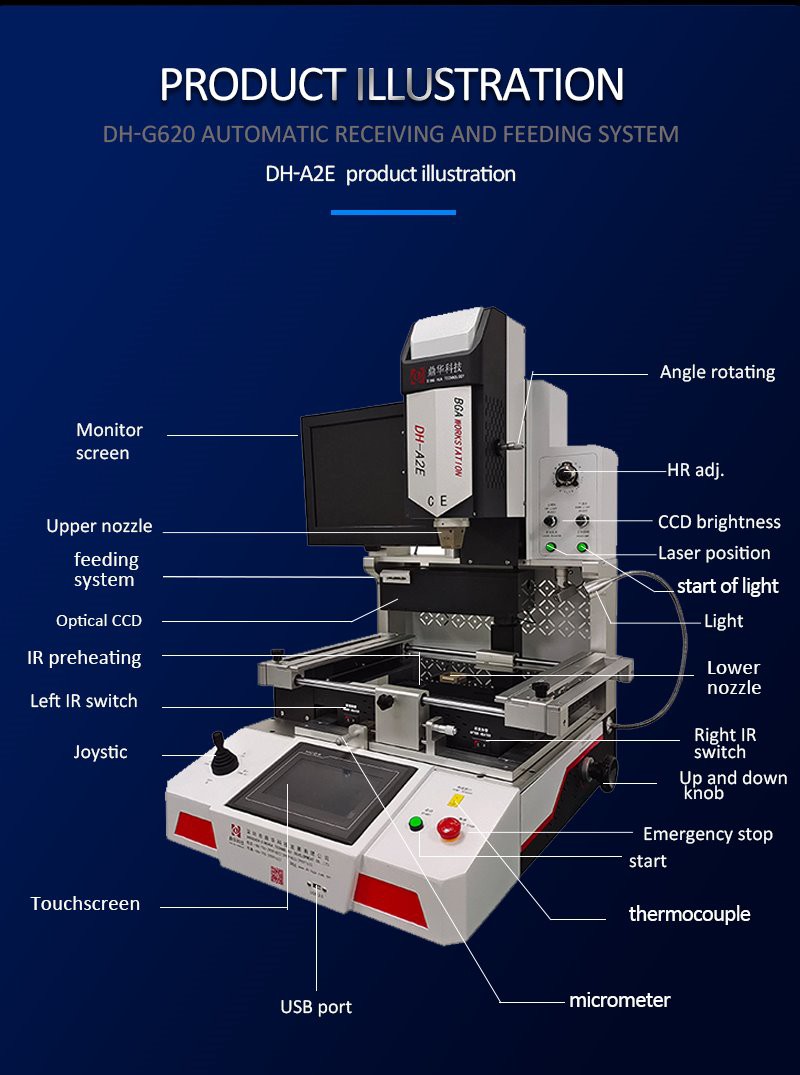
| Items | Function or usage |
| Monitor screen | Chip and motherboard imaged on antminer l3 hashboard repair |
| Upper nozzle | To collect hot-air for heating |
| Feeding system | Automatically carry or recyle a chip t9+ hash board repair |
| Optical CCD | Visbile aligning and mounting |
| IR preheating | Preheating area |
| Left IR switch | Turn on/off antminer l3+ hash board replacement |
| Joystic | Zoon in/out |
| Touchscreen | To set temperature and time repair antminer hash board |
| USB port | Upload software or download temperature profile |
| Micmeters | Fine-tune +/-15mm l3 hash board repair |
| Thermocouple | External temperatures tested |
| Start | Start to work repair hashboard |
| Emergency stop | Stop running antminer s9 hash board replacement |
| Up and down knob | Up and down |
| Right IR switch | Turn on/off s17 hash board repair |
| Lower nozzle | To collect hot-air for heating |
| Light | Lighting s9 hash board repair |
| Start of light | Turn on/off |
| Laser position | To locate fastly antminer hash board repair |
| CCD brightness | Brightness adjusted |
| HR adj. | Hot-air flow adjusted |
| Angle rotating | Chip rotated hashboard repair |
Details explained

Display screen: 1080P, 15 inches. Chip and motherboard imaged clearly for aligning then mounting
Soldering and Picking up

Vacuum tubes and upper heating are in 1, automatically picking up after desoldering, and
automatically mounting after visible aligning. antminer l3+ hash board repair
Working foundamental antminer hash board repair

3 indenpendent heating areas, 2 of them are hot-air heaters, 1 one of them is infrared; hot-air
for removing/desoldering and soldering, IR preheating area is larger for bigger motherboard preheated.
Parameter set

7 inches touchscreen, as many as temperature profiles can be set and storaged.
PID for temperature controlling, 16 segments for temperature and time set, which makes sure
motherboards and chip can be protected at most. antminer s9 hash board repair
Relevant knowledges:
hardware
1. Hardware
1.1 Power
1.1.1 The Power Supply Operates Normally
Note: Normal operation means that the CPU cooling fan on the motherboard can rotate, and the graphics card fan can rotate.
1.Problem: There are 6 graphics cards on the shelf, which enter the system normally, but only 2 graphics cards are displayed in the display adapter, and the computing power can only run on two graphics cards. (Right-click "My Computer" > "Properties" > "Device Manager" > "Display Adapters" to view).
Answer: If the power supply is damaged, it can only support two graphics cards. Replacing the power supply will solve the problem.
2.Problem: When two graphics cards are inserted into the motherboard's graphics card slots, the screen turns on, and the system can be accessed. However, when more than two graphics cards are added, the system cannot be turned on, and it cannot boot into the system.
Answer: If the power supply is damaged, it can only support two graphics cards. Replacing the power supply will solve the problem.
1.1.2 The Power Supply Does Not Work Properly
Note: "Not working properly" means that the CPU cooling fan on the motherboard does not rotate, and the graphics card fan does not rotate.
1.Problem: The CPU cooling fan does not rotate, and the graphics card fan does not rotate.
Answer:
- Step 1: Check whether the 24-pin and 4-pin power supply cables are properly connected to the motherboard.
- Step 2: Check whether the power supply's graphics card cable is properly connected to the graphics card.
2.Problem: After checking the wiring and confirming everything is connected properly, the system still doesn't work.
Answer: There may be a fault inside the power supply. Replacing the power supply will solve the problem.
3.Problem: The power is automatically cut off.
Answer: Use a power supply tester to check whether the voltage is stable. Replace the power supply if the voltage is unstable.
1.2.1 Normal Operation of the Graphics Card
Note: Normal operation refers to the proper rotation and heat dissipation of the graphics card fan.
1.Problem: All the graphics cards on the rack operate normally, but the computing power can only run on some of the graphics cards.
Answer: Check whether the drivers for all the graphics cards are up to date. (Right-click "My Computer" > "Properties" > "Device Manager" > "Display Adapters" to view).
2.Problem: After entering the system, an error prompt appears as shown in Figure 1.
Answer: This error suggests that the card is missing a BIOS. You need to reflash the BIOS. (Reflash the graphics card and restart the system).
3.Problem: View the graphics card information in AMD-GPU, and it prompts that there is no VBIOS or other video card extension information.
Answer: This prompt indicates that there is no VBIOS. Try exchanging card slots or using a different extension cable.
1.2.2 The Graphics Card Cannot Operate Normally
Problem: The fan of the graphics card does not rotate properly and cannot dissipate heat.
Answer:
- Step 1: Check whether the extension cable of the graphics card is connected properly.
- Step 2: Replace the extension cable if needed.
- Step 3: Check whether the power supply cable for the graphics card is damaged or not connected properly.
- Step 4: If the graphics card still does not function, it may be damaged.
1.3 Mainboard
1.3.1 Normal Operation of the Mainboard
Note: Normal operation refers to the proper operation of the CPU cooling fan.
Problem: Unable to run the computing power of the graphics card normally (after eliminating the problems with the graphics card and power supply).
Answer: If both the graphics card and power supply have been checked and are working properly, but computing power is still unavailable, the issue may be with the graphics card slot on the motherboard.
1.3.2 The Mainboard Cannot Operate
1.Problem: The CPU cooling fan on the motherboard does not rotate (after troubleshooting power issues).
Answer:
- Step 1: Check whether the CPU cooling fan cable is properly connected to the motherboard.
- Step 2: Check whether the motherboard is damaged.
2.Problem: The CPU cooling fan rotates intermittently.
Answer: After replacing the CPU chip, test whether it can work normally.


